Awards Admin Reference
This page gives a reference to all membertility views which are available to members who have the awards admin security role.
Award Races view
Navigation: Awards > Races
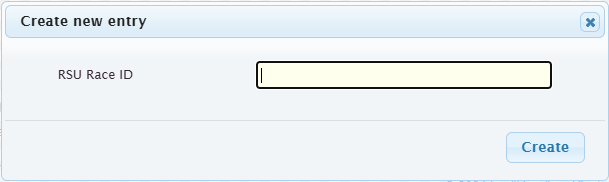
To create a new race, click the New button, enter the race ID from RunSignup, then click Create. The race ID can be determined from the race’s results page URL, e.g., for https://runsignup.com/Race/Results/61987#resultSetId-566447;perpage:100, the race ID is 61987.
To see the current awards for this race via the Race Awards view, select the race, then click Awards.
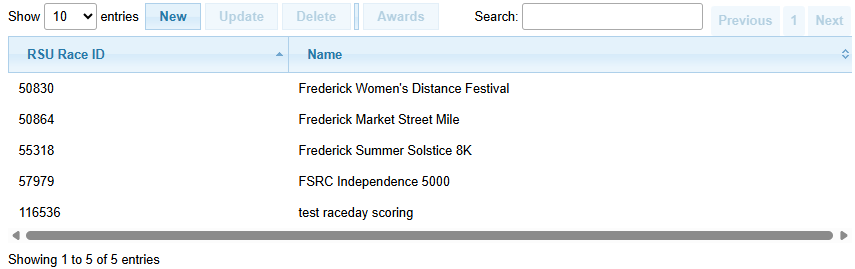
New
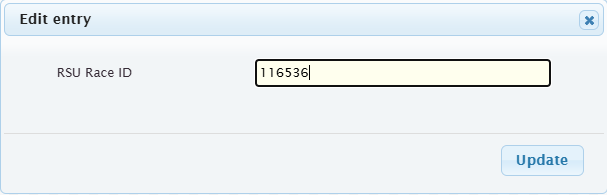
To update race divisions after initial creation, click the Update button and then click Update.
Warning
Do not change the RSU Race ID
Race Awards view
Navigation: Awards > Races > [select Race] > Awards
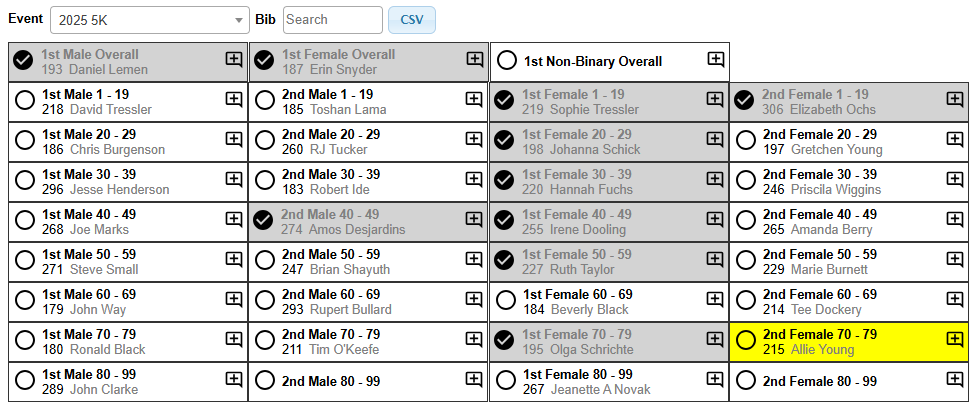
This view is used to view the current award winners, to indicate that the award has been picked up, and to enter optional notes about the award.
The Event filter should be used to select the event which you’re interested in. If the current race has multiple events, you can switch between these easily using the pull-down, or you can have multiple tabs open in your browser.
There is no need to refresh the page to see changes, as the view is updated automatically when the awards are updated in RunSignup.
When an award winner picks up their award, click anywhere in the cell to the
left of the  icon. The
  will
change to
will
change to  and the cell will turn grey. This indicates that
the award has been picked up.
and the cell will turn grey. This indicates that
the award has been picked up.
To find the cell for a specific award winner, use the Bib filter to search
for their bib number. To clear the bib filter, click on the  icon which appears to the right of the bib filter.
If an award was marked as picked up, but subsequently the results were changed such that that award had been given to the wrong person, the new award winner will be displayed and the background for that cell will turn yellow.
If you want to add a note to an award (e.g., “John Doe picked up the award for
Jane”), click on , add the note and then click Save.
 will be displayed for awards which have notes. Once a note
has been added, hovering over will display the note, and
clicking on will display the note and allow the user to
edit it.
will be displayed for awards which have notes. Once a note
has been added, hovering over will display the note, and
clicking on will display the note and allow the user to
edit it.
To download the current state of the award distribution, click on the CSV button. The CSV file is described in Race Awards CSV file.
Note
If the divisions are changed in RunSignup after this view is displayed, from the Award Races view click the Update button to update the divisions in the database, then refresh this view.
Note
On a phone, these will be stacked vertically
Race Awards CSV file
The race awards CSV file contains the following columns:
- name:
the name of the awardee
- bib:
the bib number of the awardee
- division:
the division of the awardee
- place:
the place of the awardee within the division
- status:
the status of the award, which can be one of:
picked up: the award has been picked up by the awardee
pending pickup: the award has not yet been picked up
distribution error: the award was picked up, but the awardee is not the correct awardee for that award
withdrawn: the award has been withdrawn from the awardee due to division reconfiguration
- notes:
any notes recorded about the award
- updated:
the date and time that the award record was last updated, formatted as YYYY-MM-DD HH:mm:ss