Organization Admin Reference
This page gives a reference to all membertility views which are available to members who have access to the Organization menu via various security roles.
Distribution List view
Navigation: Organization > Distribution List
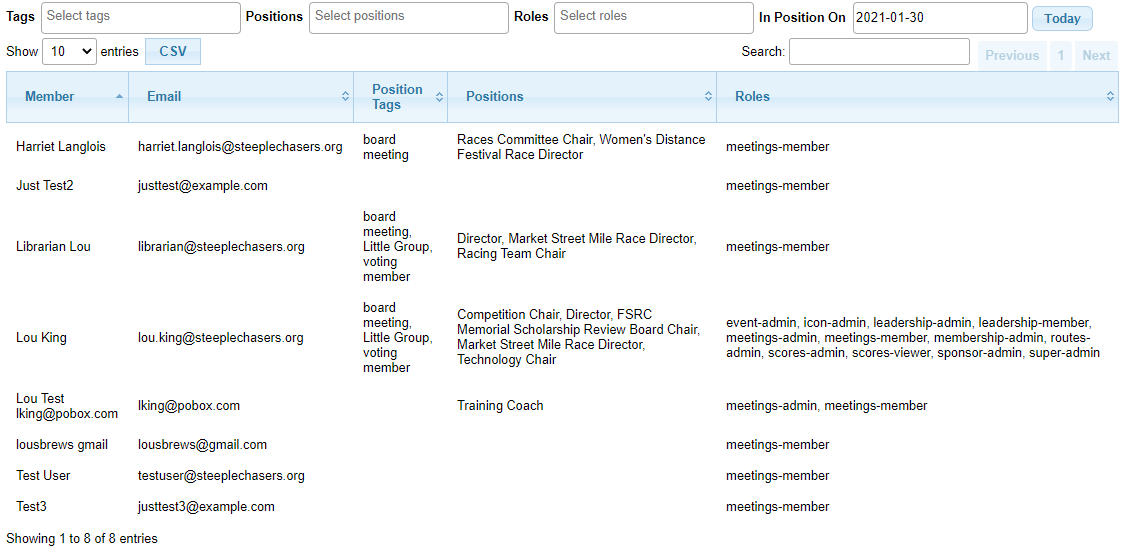
The Distribution List view is used to view and download a distribution list, suitable for copy/paste into an email client. The CSV button can be used to download a csv file of the filtered view.
The view has the following filters:
Members view
Navigation: Organization > Members
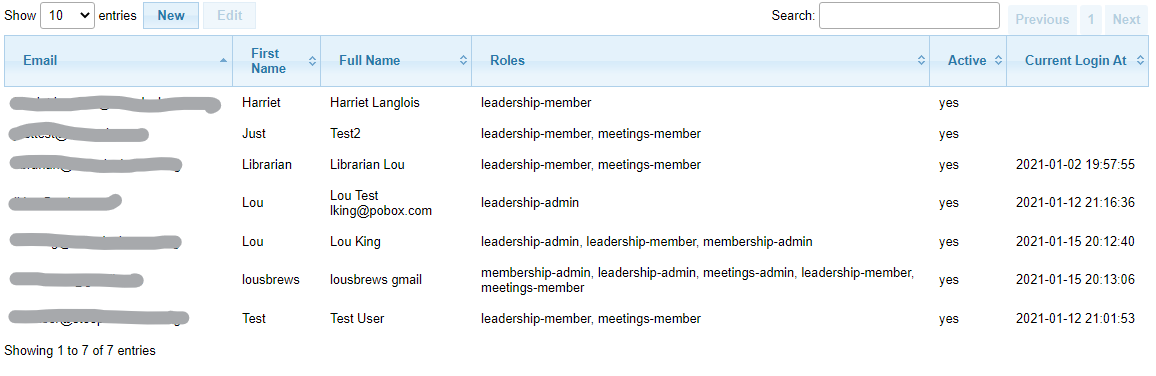
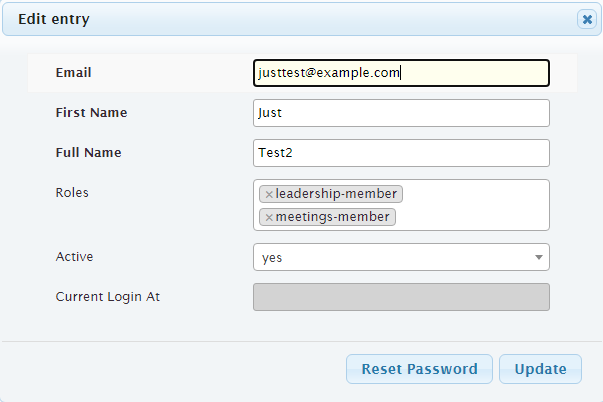
The Members view is used to add new system users, known within this document as members to the system, and to assign their security roles and interests.
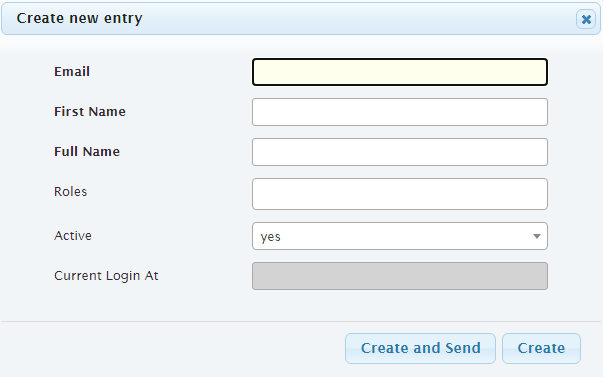
When creating a new member using this view, click Create and Send to send an email may be sent to the member’s email address. This email contains a link the member can use to reset their password. Click Create to create the new member without sending and email.
A reset password email can also be sent to the member by clicking Reset Password from the edit modal.
Note
This data is in the common database. See Single Sign-On for details about how the common database is used.
- Email:
email address for the member
- First Name:
the member’s first name
- Full Name:
the member’s full name
- Roles:
the security role(s) which will be used by the application when this member is accessing the system
- Interests:
(super admin only) the interests which will be available to the member
Note
for non super admin, when a member is created, they will have the interest currently selected by the organization admin.
- Active:
if yes, the member may log in and access the system
Position Dates view
Navigation: Organization > Position Dates
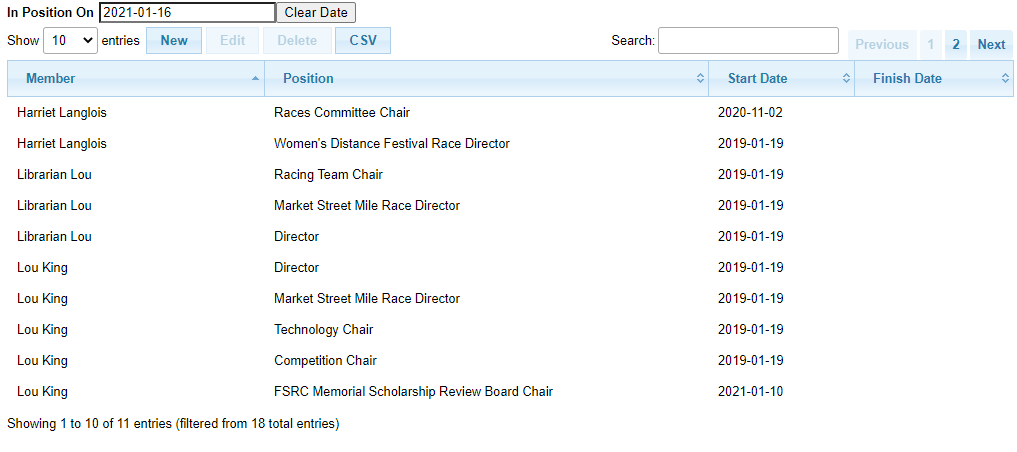
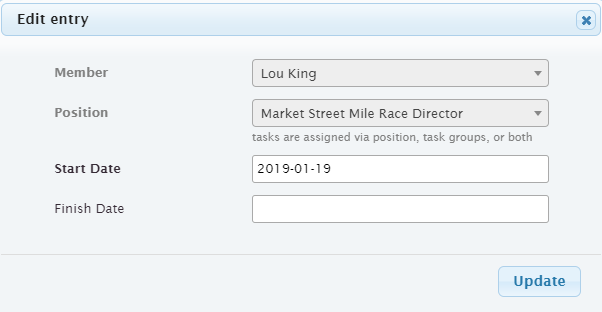
With the Position Dates view, each term for which a member held/holds a position can be viewed or edited. But please note that the Position Wizard is the easiest way to manipulate this table.
- Member:
member who holds or held the position from Start Date to Finish Date
- Position:
position which is held by the member from Start Date to Finish Date
- Start Date:
- Finish Date:
date that the member finished this term of the position. If the member is currently in this position, this should be left blank
The view has the following filters:
Positions view
Navigation: Organization > Positions
The Positions view is used for the following
associate task groups to each position to follow the Task Hierarchy.
identify which positions receive summary emails for any overdue tasks within specific task groups.
retire a position that is no longer used, while retaining its history
tag positions for use within Meetings Module for invitations, voting, and status reports – see Tags Guide
add a heading to group this position under for the meeting agenda and status report (headings are managed by the meeting admin using the Agenda Headings view)
The Positions view defines all of the positions within the organization. The organization admin can assign members to a position from this view using the Position Wizard (preferred), or from the Position Dates view.
- Position:
name of the position
- Description:
describes the position, possibly giving more information than just the name
- Members:
list of members holding this position. This list is managed using the Position Wizard or the Position Dates view
- Active:
if yes, this position is in current use. If a position is no longer needed, set this to no rather than deleting it – this hides it from the default view, removes it from reports and from new term assignment, and stops any status report/invite prompting it may have been tagged for, while preserving its history (past terms and tasks). Setting it back to yes restores all of the above with no data to reconstruct
- Tags:
tags associated with this position. See Tags Guide for more information on how tags are used
- Agenda Heading:
the heading under which this position is shown in the agenda and status report for meetings which include this position
- Task Groups:
list of task groups that are associated with the position to follow the Task Hierarchy
- Email Groups:
list of task groups for which summary emails for any overdue tasks are sent to supervisory members holding this position
- Access Types:
access types required by members who hold this position – see Access Types
- Direct Access:
one-off system/access level pairs required by members who hold this position, not worth bundling into an access type – see Access Types
The view has the following filters:
- In Position On:
- Show inactive positions:
check this to see positions which have been retired (Active is no). This allows a retired position to be brought back into use by checking this then setting the position’s Active back to yes


Position Wizard
Navigation: Organization > Positions > [select position] > Position Wizard
The Position Wizard is invoked from the Positions view by selecting a position and then clicking Position Wizard. This wizard automatically updates terms for members for the selected position.
- Effective Date:
date at which this change should become effective
- Members:
select the members which are in the position on the Effective Date. When the Effective Date is chosen, the existing members for that position on that date are shown.
Remove members who won’t remain in the position as of the Effective Date, and add members who will be starting the position on the Effective Date.
For members who will remain in the position, leave them selected.
Hint
The result of Position Wizard Update can be viewed at Position Dates view.

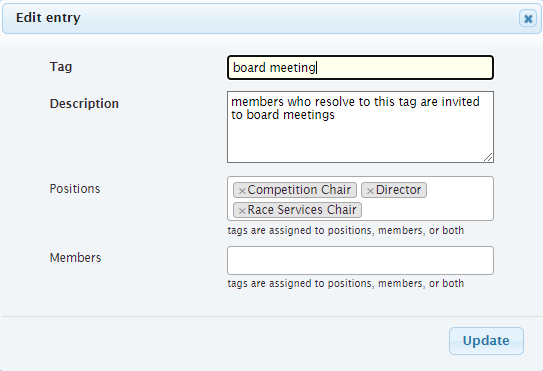
Tags view
Navigation: Organization > Tags
Tags are used for grouping together positions and members for various purposes, e.g., for invitations to be sent for a meeting, or to indicate who may vote at a meeting. See Tags Guide for a complete list of how tags should be used.
- Tag:
name of tag
- Description:
description of how the tag is used
- Positions:
this tag is attached to these positions
- Members:
this tag is attached to these members
Note
it is recommended to use the Positions field rather than Members field because as positions change, use of Members may become out of date